How to see hidden files and folders in Windows File Explorer

You can also follow a video on YT if you prefer https://www.youtube.com/watch?v=Sz-SGyavik8
Open File Explorer and find 3 dots “…” in its toolbar
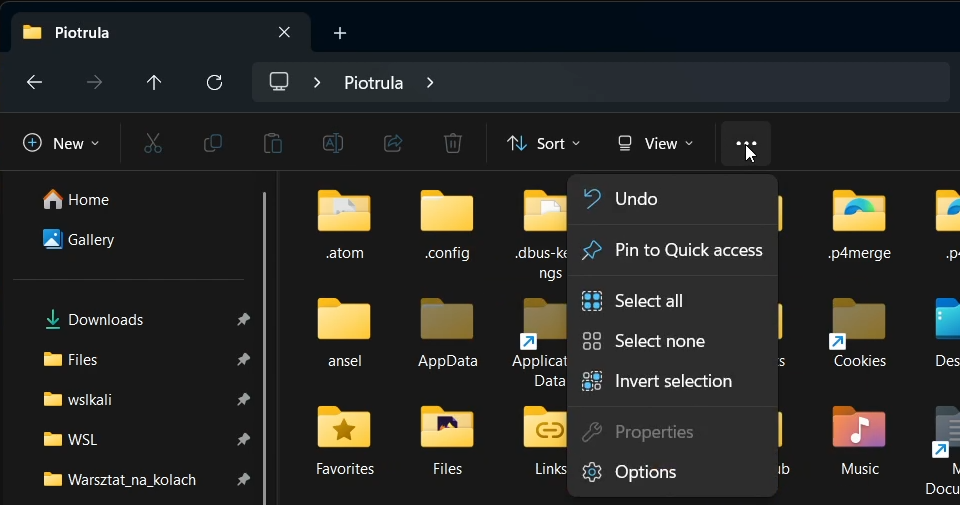
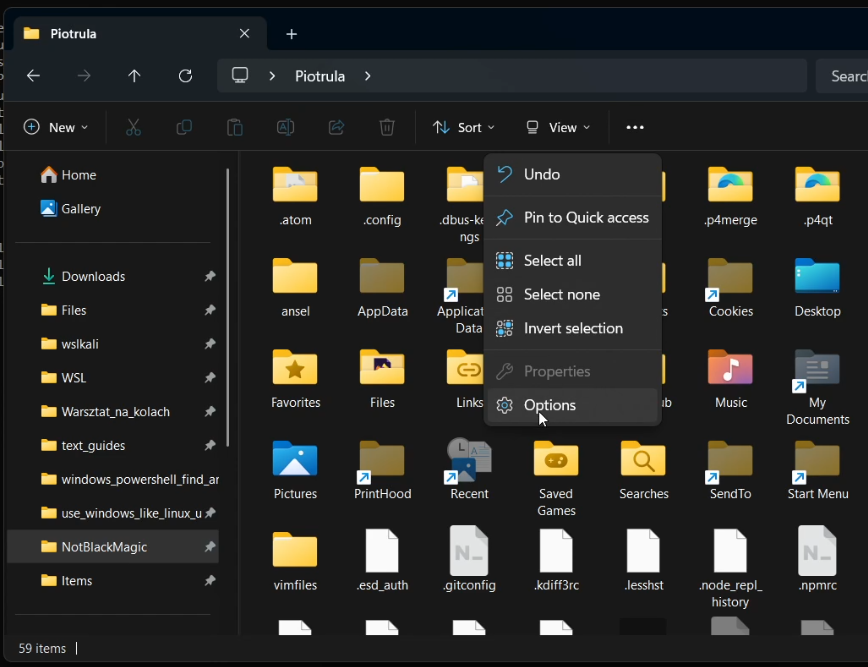
Click on ”Options”
Make sure you're in "View" tab, which is on top of a window that just opened
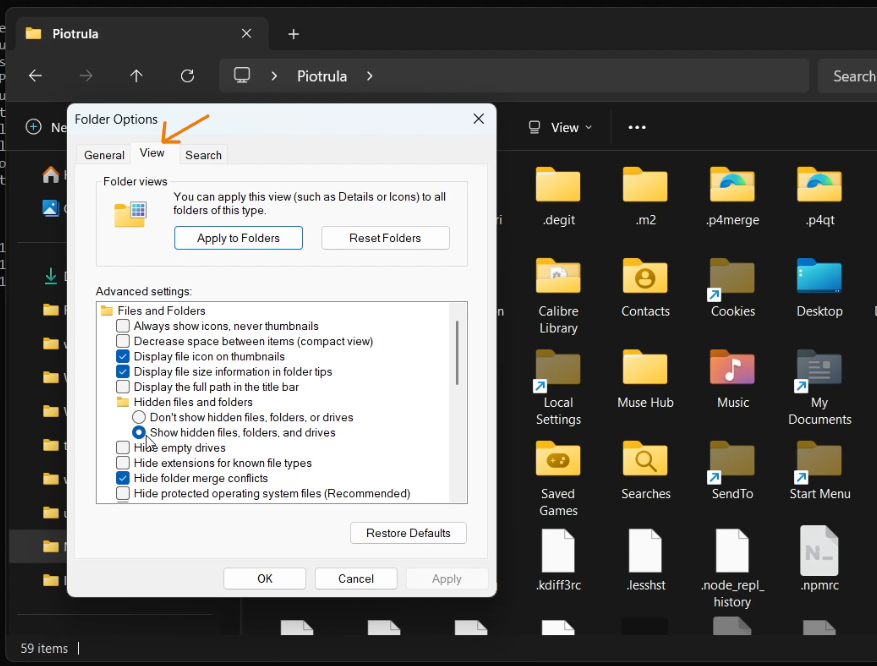
Search for “Hidden files and folders”. Check the option "Show hidden files, folders and drives" and click "Apply".
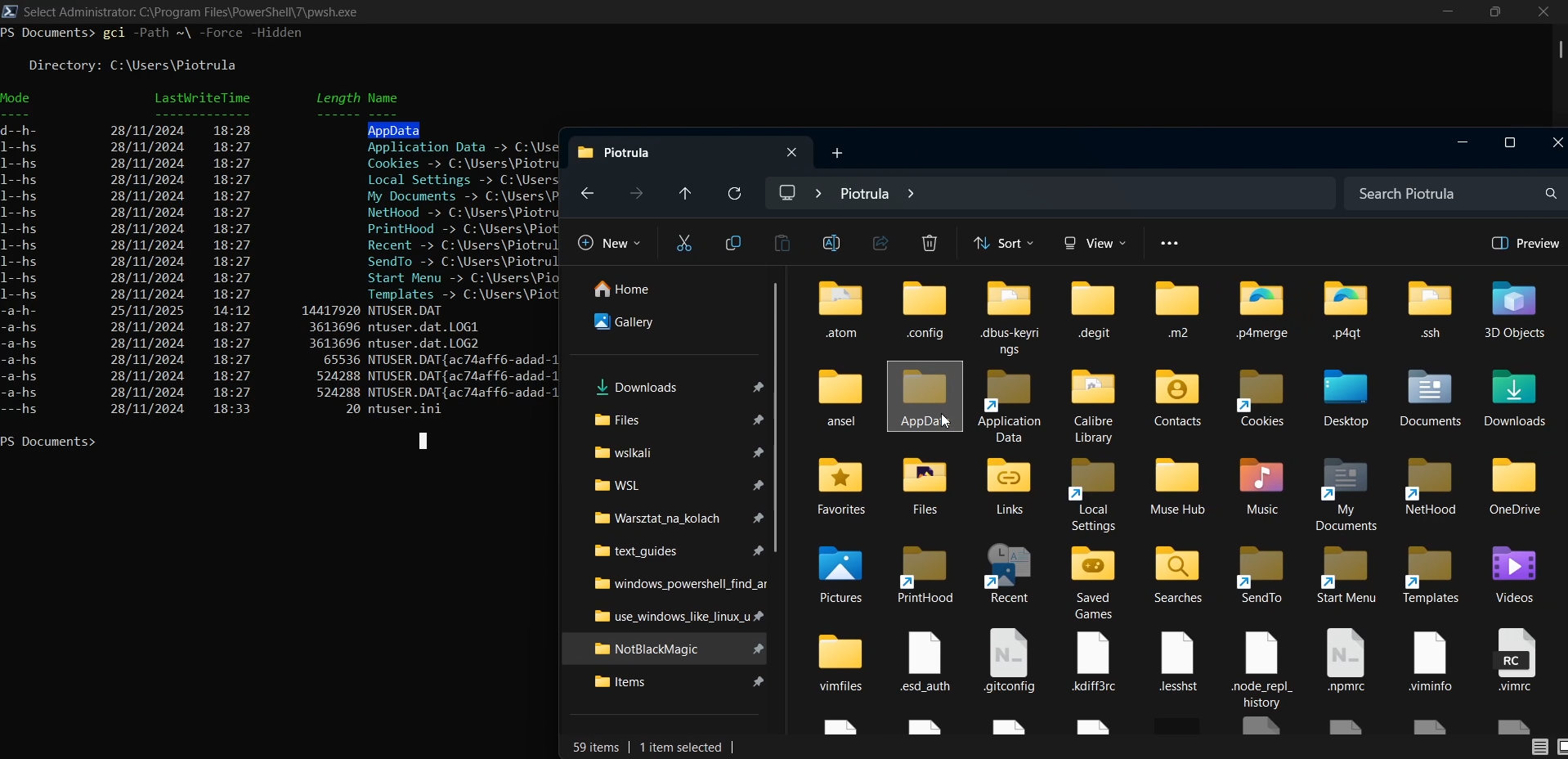
As you can see now, the hidden files and folders found by command
gciare also visible inside File Explorer. Those darker icons depict the folders that normally are hidden.
About the author
On a daily basis I fix bikes. Besides that, I devote nearly all my life to sharing knowledge with others. I studied urban design. Support me on Ko-fi if you find valuable what I do :) https://ko-fi.com/piotropoka
Comments
Join the discussionNo comments yet. Be the first to comment.


